User access rights management
Access rights determine which parts of the portal a user can view or manage, and which organisations or power plants they can access. You need permission to edit access rights to add, change, or remove user access.
Open Access rights
- Select Settings.
- Open the Access rights tab.
- Select Users to manage individual user access, or Groups to review access granted to groups.
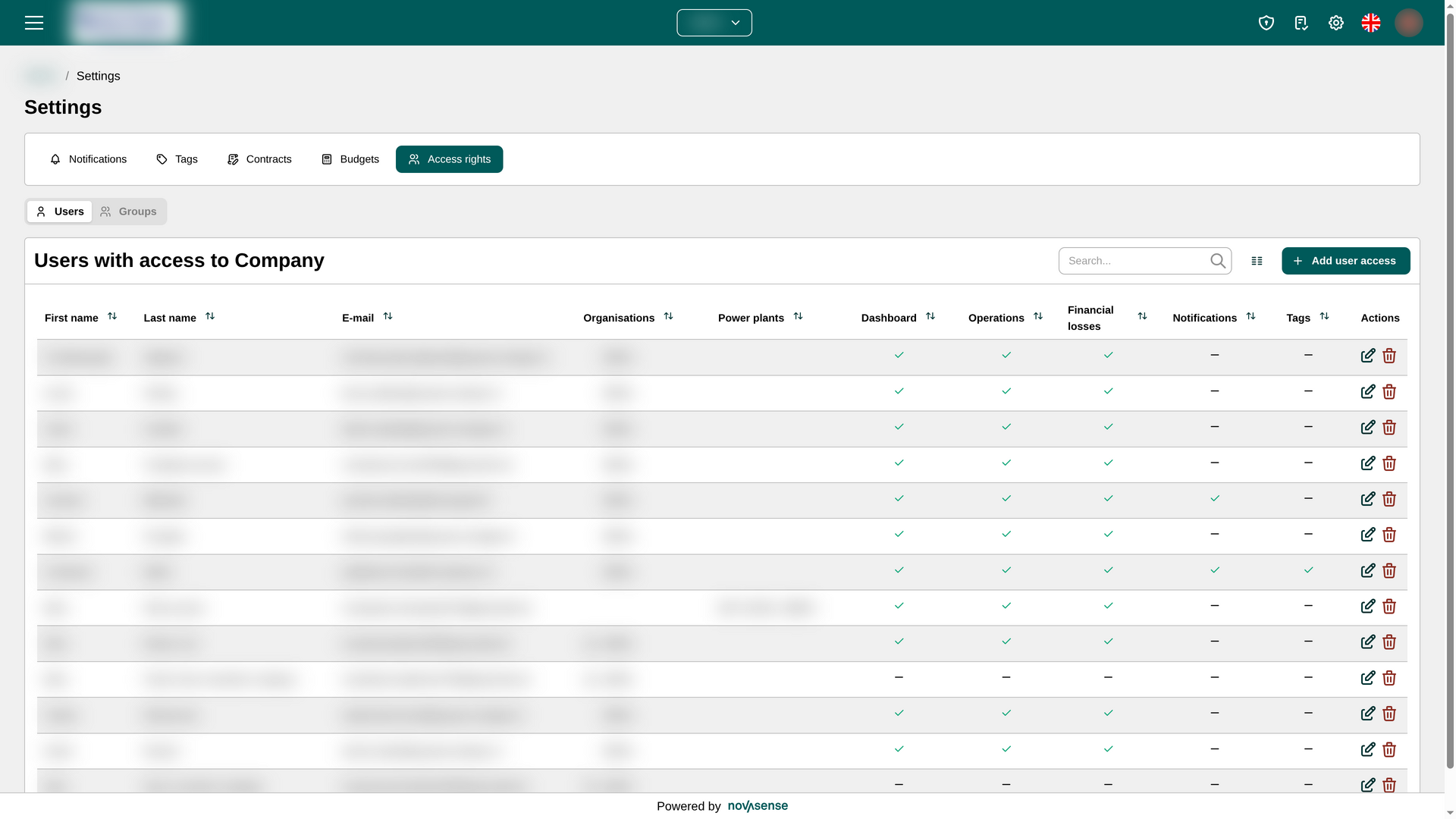
In the Users list, each row shows a user's name and email, assigned organisations and power plants, enabled module permissions, and available actions. Use search to find a user. Select the edit icon to change access or the delete icon to remove it. The Groups list shows group, organisation, and power-plant access; use its search field to filter the list.
The permission columns use a check mark when a permission is enabled and a dash when it is off:
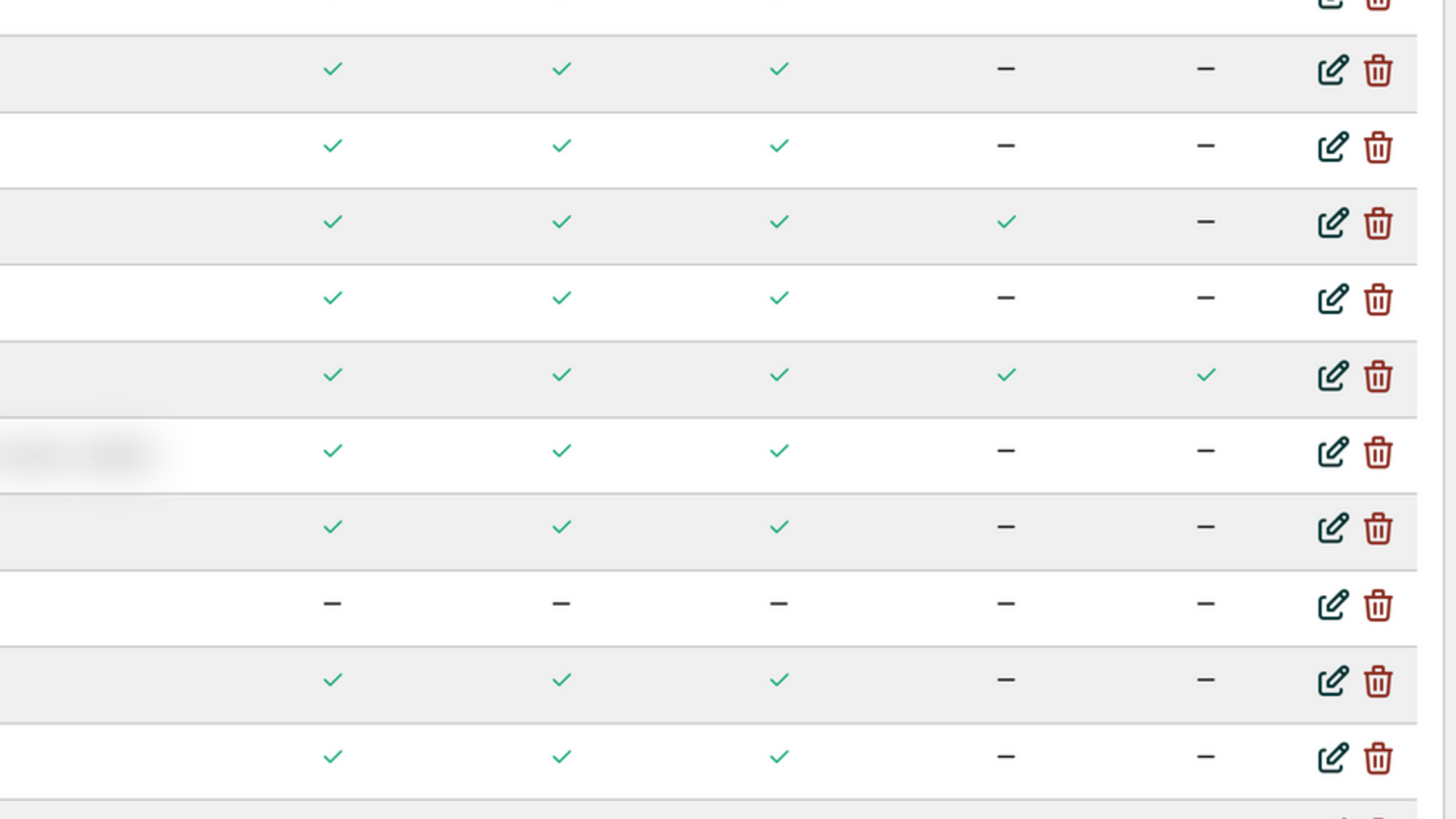
Permission types
| Permission | Description |
|---|---|
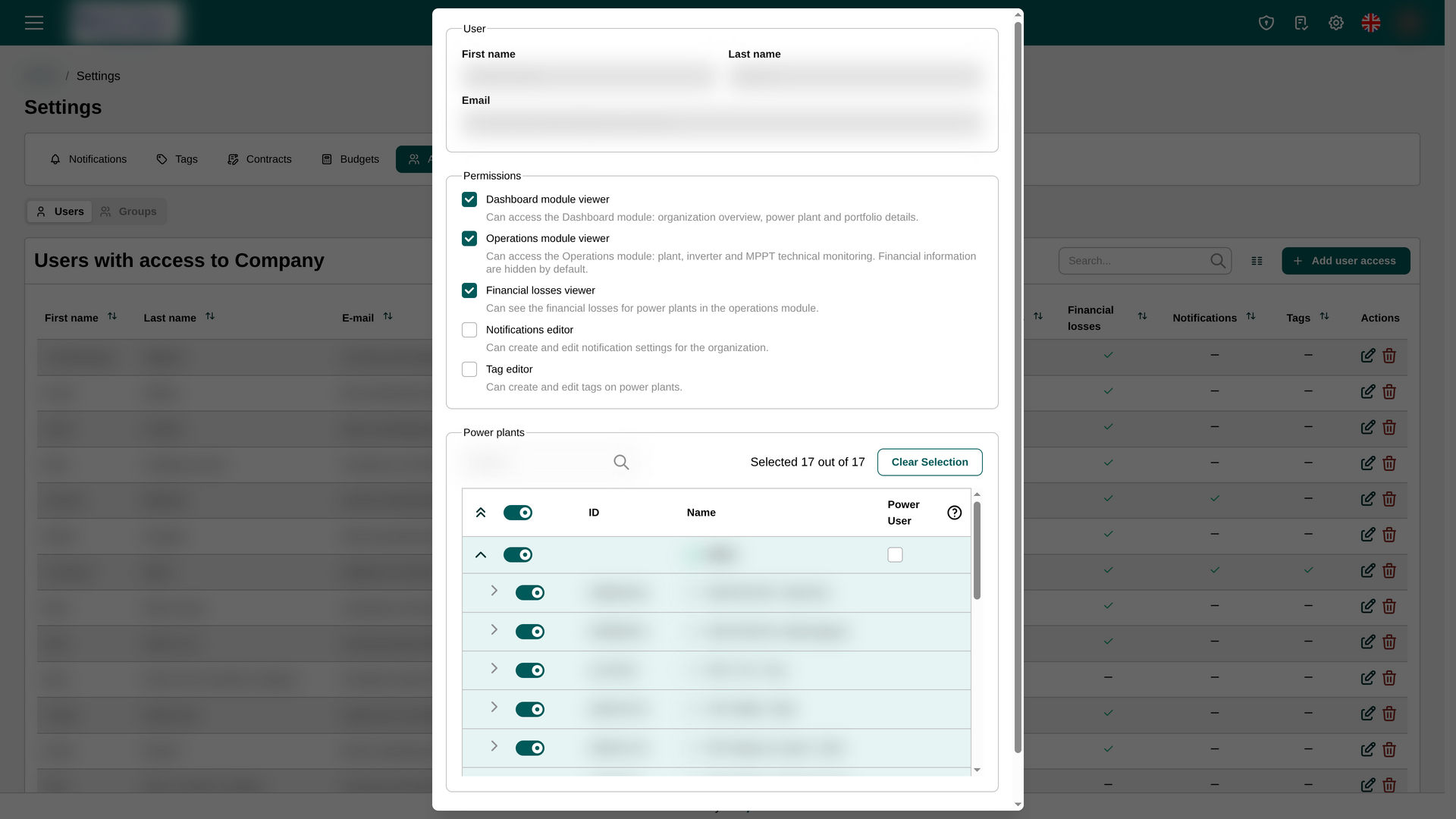
| Dashboard module viewer | Access to the organisation overview, power-plant details, and portfolio. |
| Operations module viewer | Access to technical monitoring for power plants, inverters, and MPPTs. Financial information is hidden unless the user also has the financial-loss permission. |
| Financial losses viewer | View power-plant financial losses in Operations. |
| Notifications editor | Create and edit notification settings for the organisation. |
| Tag editor | Create and edit tags on power plants. |
| Power user | Manage access rights, contracts, budgets, and notification rules for an organisation and its power plants. Power users also receive notifications during power-plant onboarding. |
Add access for a user
- In Users, select Add user access.
- Choose one of the account options:
- Existing user: enter the email address for an account that already exists in the portal.
- New user: enter the user's first name, last name, and email address.
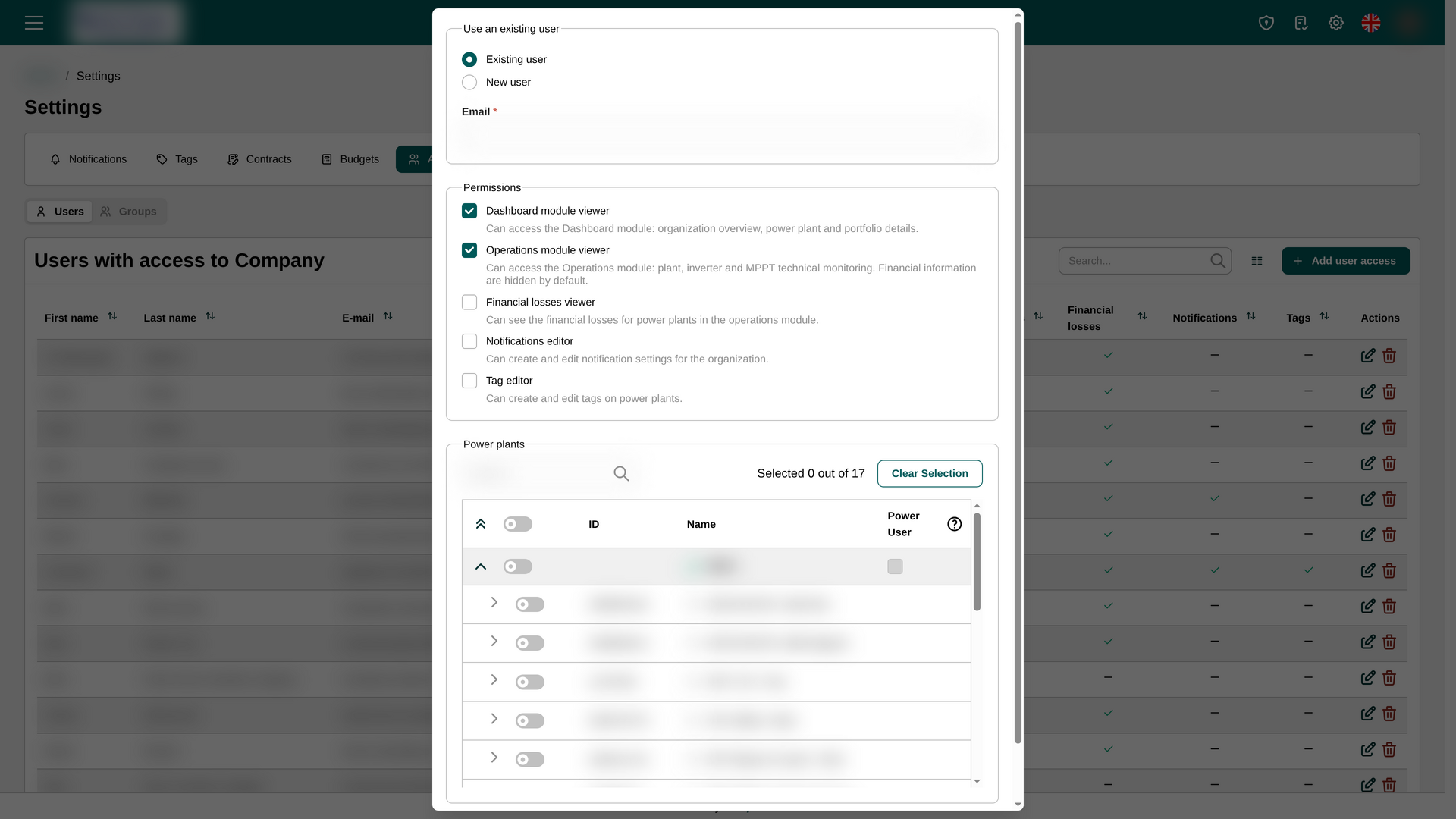
- Select the permissions the user needs.
- In Power plants, select the relevant organisation and/or individual power plants in the hierarchy.
- Optionally mark an assigned organisation as Power User if the person needs to manage access rights, contracts, budgets, and notification rules for that organisation and its power plants. Power users also receive notifications during power-plant onboarding.
- Select Add to save the access.
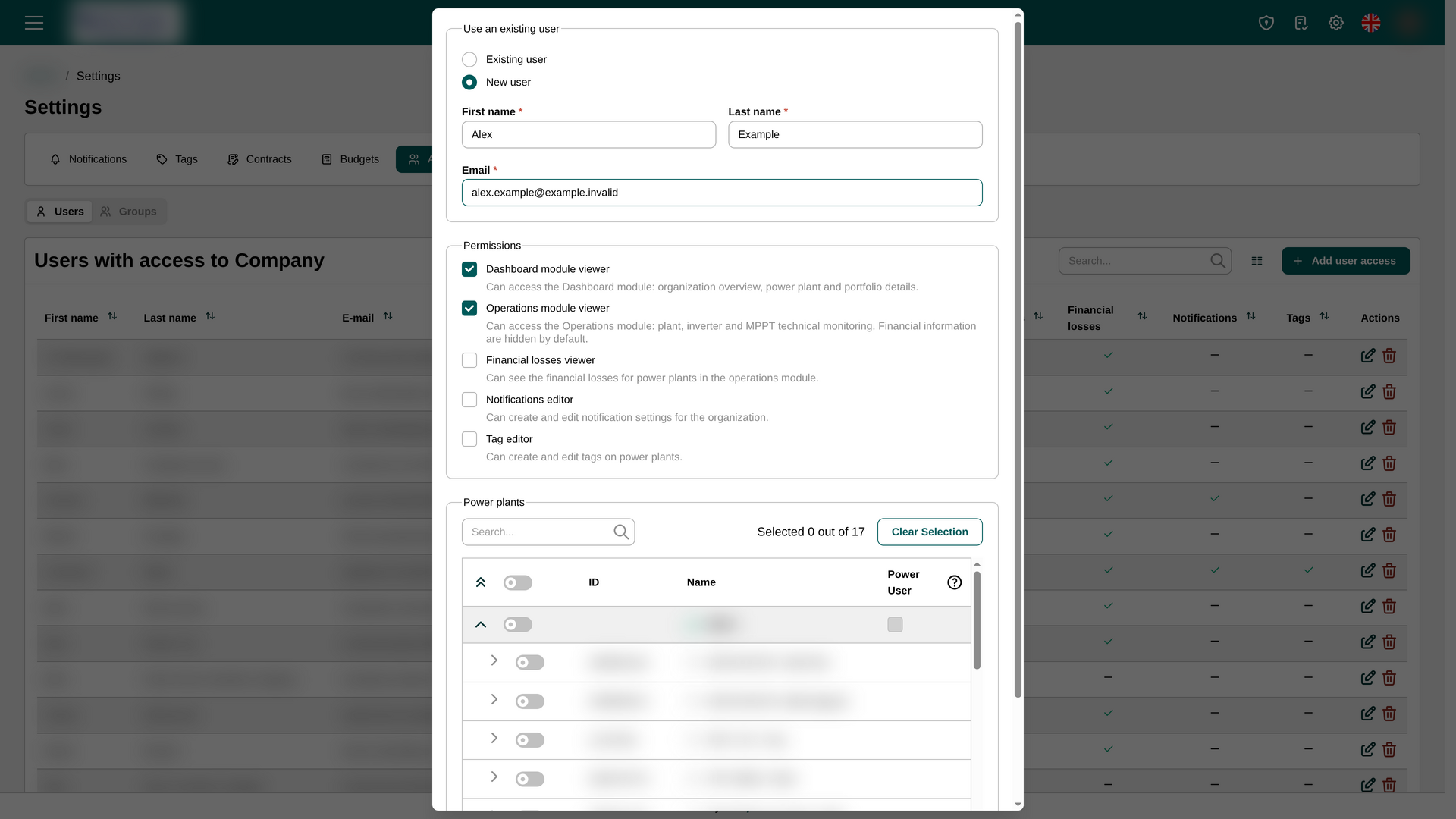
For a new user, creating the account does not finish the sign-in setup. After the account has been created, the user must try to log in. They will then receive an email with instructions to set their password.
Edit or remove access
Select the edit icon in a user's row to review or change their details, permissions, or assigned scope, then select Save. Existing users' names and email addresses are read-only in this form. Some permissions may also be read-only when the user has access to organisations you cannot manage.
Select the delete icon and confirm to remove the user's access. If the user has no access to other organisations, this also permanently deletes their portal account. If they still have access to other organisations, only their access to the current organisation and its assigned power plants is removed.
Protected users
Protected users are accounts that have access to organisations or power plants outside your direct management. You cannot modify or remove their access. If you need to change the permissions of a protected user, contact Novasense support.